
Once a new member has registered and after you received the email telling you about this, you need to login and create a new page for this member.
In this process 4 steps are important:
- Make sure you name the page the same as the new member’s business name
- Make sure you list the new page under the right sub category
- Make sure you select the new member as the author of the new page
- Make sure to save the new page as Draft
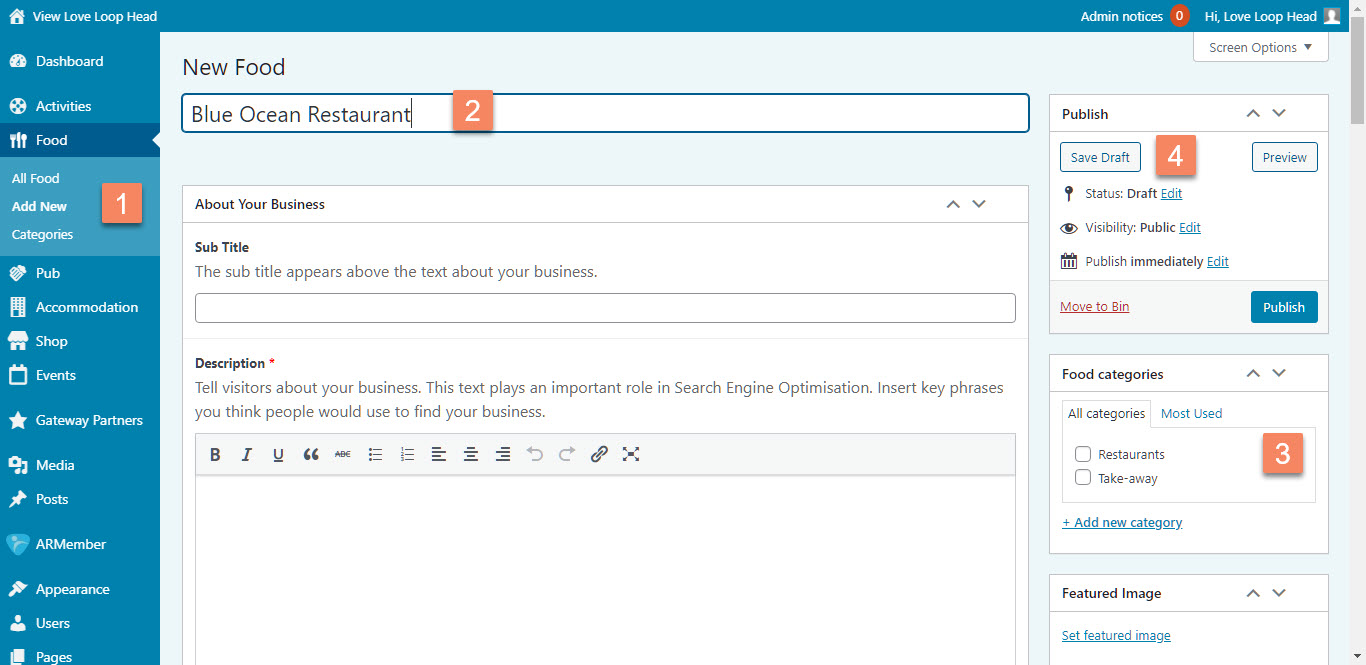
Figure 1
To create a new blank page you follow these steps:
- In the WordPress menu navigate to either Activities (DO), Food (EAT), Pub, Accommodation (STAY) or Shop and in the sub menu choose Add New (Figure 1.1)
- On the new page enter the title in the first field. Make sure that the title is the same as the new member’s business name. (Figure 1.2)
- Scroll all the way down to where you find a field named ‘Author’. (Figure 2.1) By default it will say Love Loop Head (LLHadmin), ie. that’s you, but you need to change it to the new member’s name. In the case of our example of Peggy Blue it should be Peggy Blue (PeggyBlue).
- Scroll up again to where you see a box in the right column that says … categories (Figure 1.3), where … depends on the main group you’re in. In the example of Peggy it says Food categories. Select the proper sub category. You can add another category if needed. These categories are used on the page that lists all Food members. It enables visitors to further filter the list.
- In the Publish box above the categories (Figure 1.4) click the Save Draft button. Do not click the blue Publish button because this would make the member’s page live.
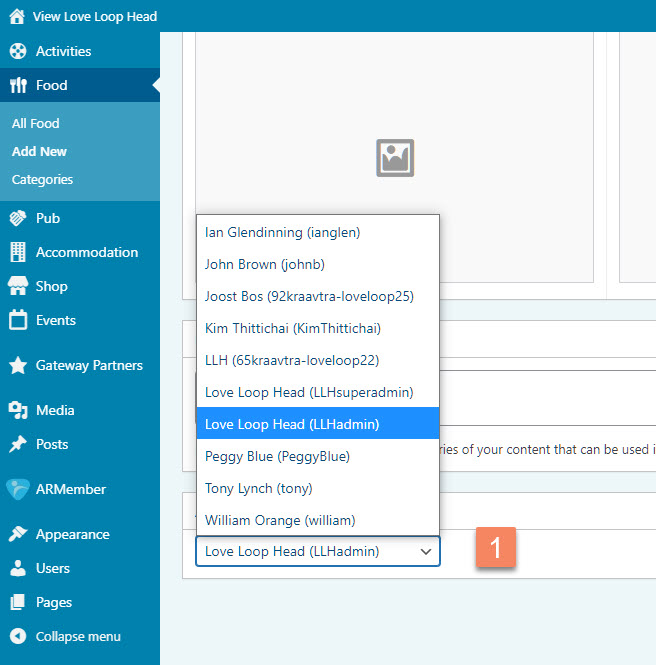
Figure 2