
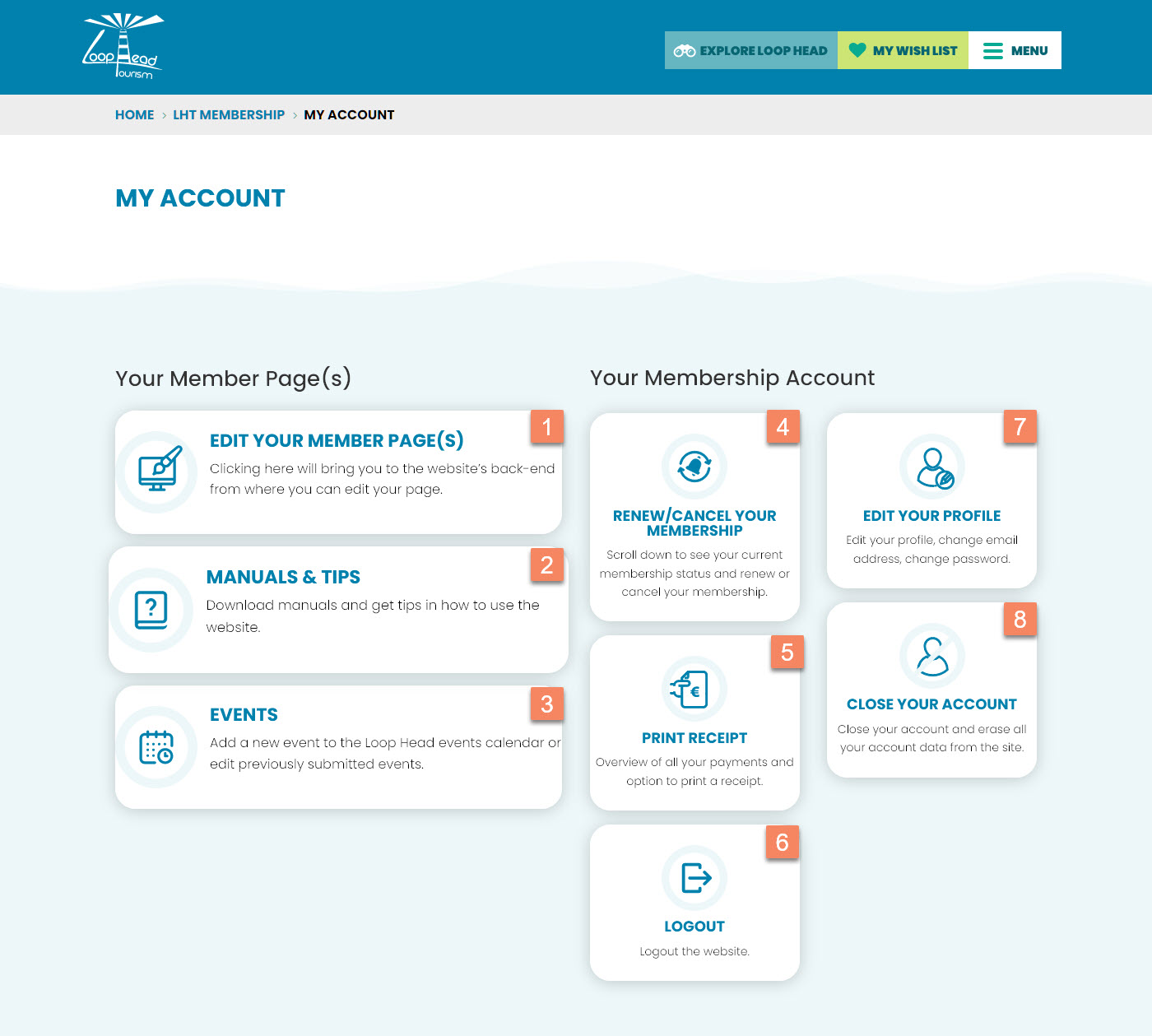
Figure 3
After a successful login you will be redirected to the My Account Page (Figure 3). This page has a number of link boxes. Clicking on a box brings you to the relevant page or scrolls down the relevant section.
Figure 3.1: Edit Your Member Page(s)
This link box will bring you to the admin area of the website from where you can edit your member page(s). It will open the admin area in a new browser tab. More information here.
Figure 3.2: Manuals & Tips
This will bring you to the manuals and support website where you are now.
Figure 3.3: Events
Clicking this link box will open a page in a new browser tab where you can add an event or edit events you have previously added to the calendar. More information here.
Figure 3.4: Renew/Cancel Your membership
Clicking this link box will scroll down the page to the section from where you can renew your membership (Figure 4).
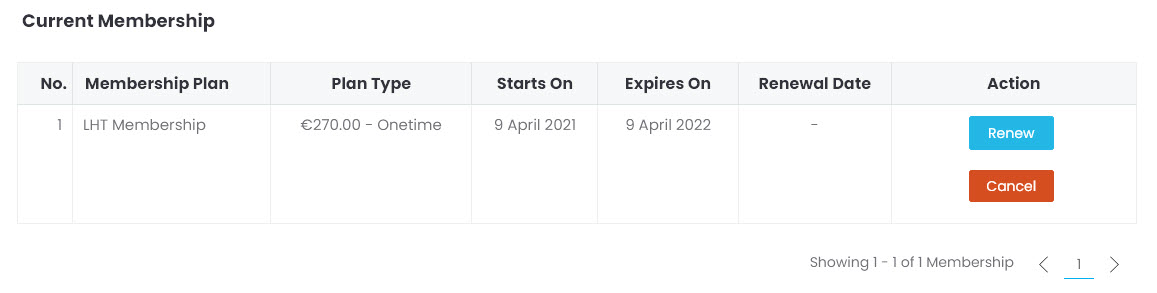
Figure 4
Your membership is valid for one year. You can see when your membership expires in the column Expires On as shown in Figure 4.
You will receive a few notification emails reminding you when your membership expires. These emails will be sent to you 1 month, 2 weeks, 1 week and 1 day before your membership expires.
You can renew your membership at any time. The new membership will be added to the end of your current membership. Renew your membership by clicking on the blue Renew button (Figure 4).
Cancelling your membership will delete all your content and you will not be notified in the future about renewals. You will not be reimbursed the already paid membership fees.
Figure 3.5: Print Receipt
Clicking this link box will scroll down the page to the section from where you can review previous payments you made to Loop Head Tourism (Figure 5). It also has a View Invoice button. Click on it and a printable invoice will open in a popup window.
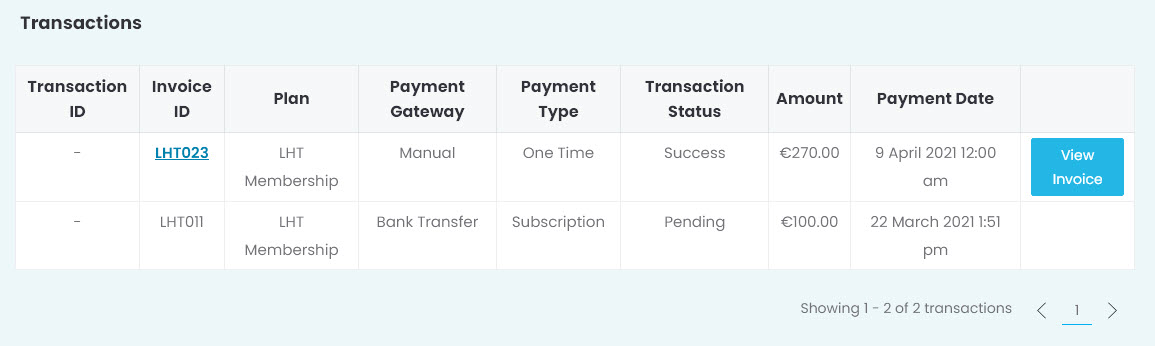
Figure 5
Figure 3.6: Logout
Clicking this link box will log you out of the website. It is recommended to use this method instead of simply closing the browser tab or your browser. In both cases you will be logged out but when you close down your browser tab you will remain logged in for some time.
Figure 3.7: Edit Your Profile
Clicking this link box will scroll down the page to the section from where you can edit your profile (Figure 6).
You can change your name, email address, phone number or password. Note that it is not possible to change your username.
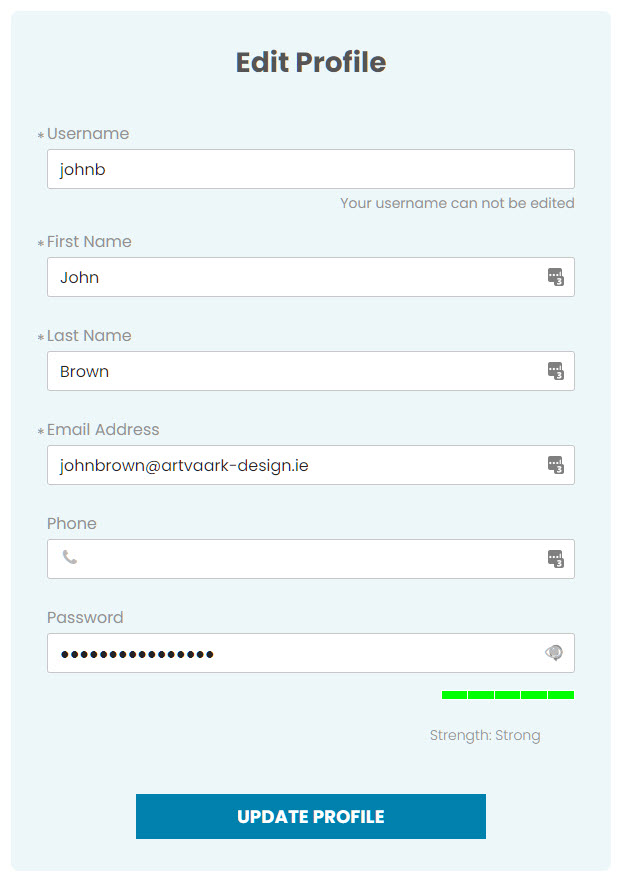
Figure 6
Figure 3.8: Close Your Account
Clicking this link box will scroll down the page to the section from where you can close your account (Figure 7).
Closing your account will erase all of your account data from the site. You will not be able to login anymore. The website administrator will get an email when you close your account and will delete your member page(s).
To delete your account you need to enter your password first.
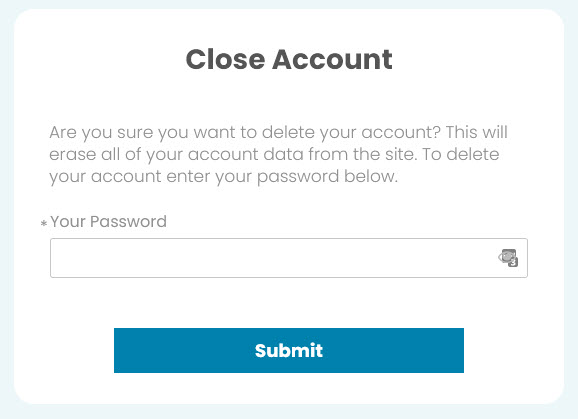
Figure 7