
Bottom Section
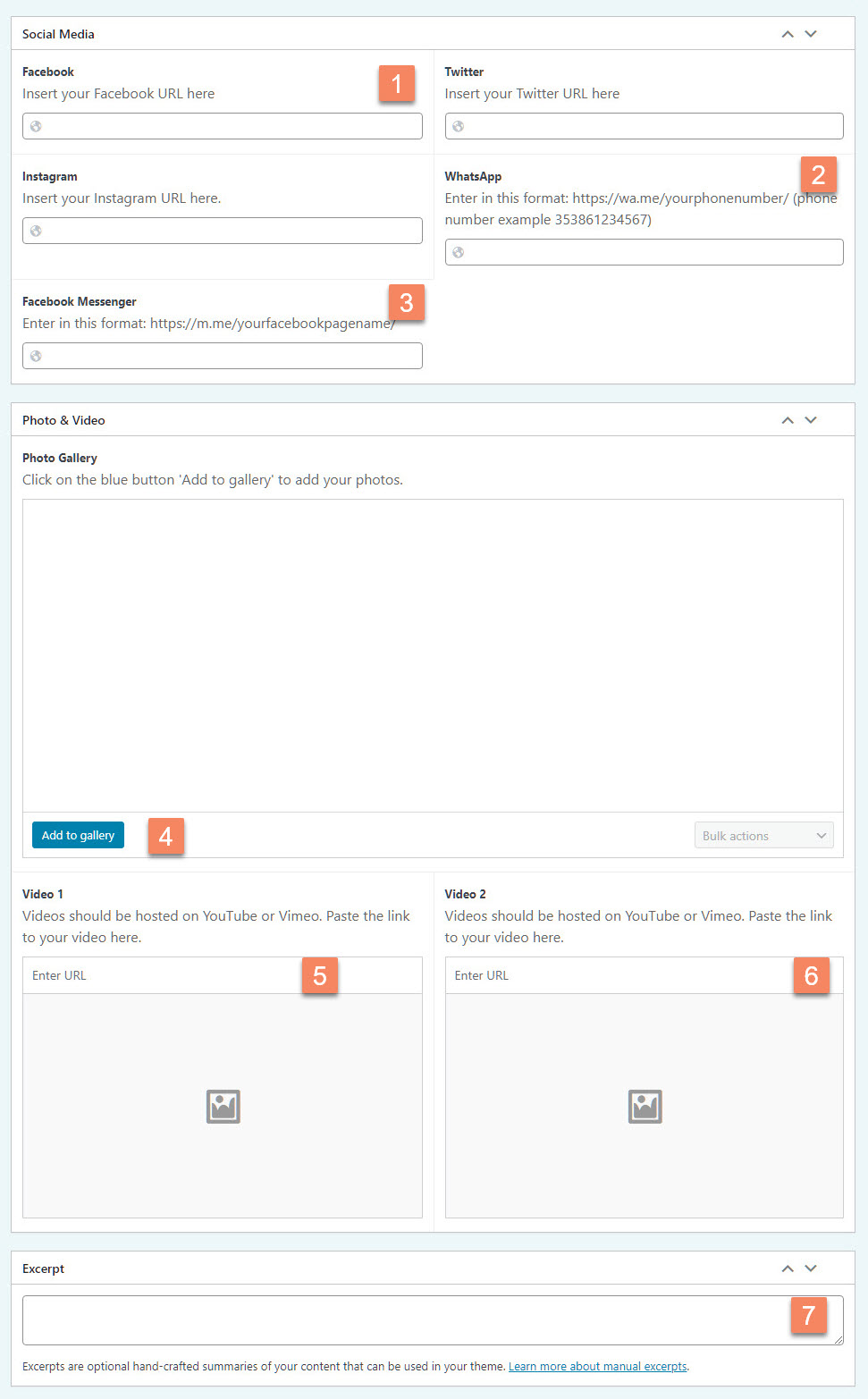
Figure 20
Social Media (Figure 20.1)
In this section you can enter the link to your Facebook page, your Twitter account or your Instagram page. It also has two additional option where people can click the button (Figure 21) and either send you a WhatsApp message or a Facebook Message.
If you don’t have one of these accounts or don’t want people to use WhatsApp or Facebook messenger to contact you simply leave the field empty and the icon will not show on the front-end.
Facebook, Twitter & Instagram
Simply enter the URL of your Facebook, Twitter or Instagram page. The easiest way is to browse to these pages in a new browser tab and copy the URL from your browser’s address bar.
WhatsApp
For people to contact you via WhatsApp you need to enter a URL here in this format:
https://wa.me/yourphonenumber/
Your phone number should be entered as 353861234567. No spaces are allowed.
Facebook Messenger
For people to contact you via Facebook Messenger you need to enter a URL here in this format:
https://m.me/yourfacebookpagename/
You Facebook page name is the bit in your Facebook URL after https://www.facebook.com/
Say your Facebook page URL is https://www.facebook.com/purecampingireland, the correct Facebook Messenger URL is
https://m.me/purecampingireland/
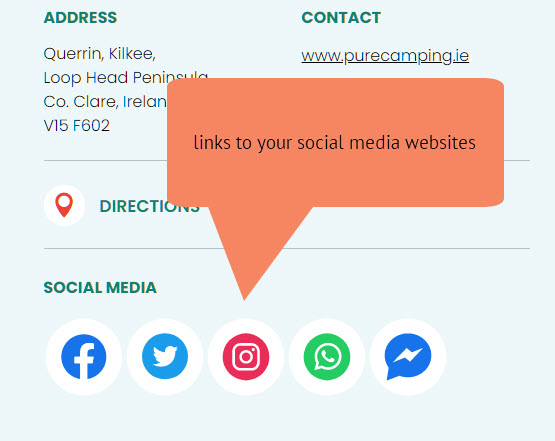
Figure 21

Figure 22
Photo Gallery (Figure 22)
This section gives an option to upload photos of your business. The photos will be shown in a Gallery on the front-end.
To add photos to the gallery:
- Click the Add to Gallery button (Figure 22.4) which will open a pop up window.
- In the Pop Up window click the Select Files button which will open Windows Explorer or Mac Finder on your computer
- Find the image on your computer and click Open. You can select more than one image by holding down the CTRL-key on your keyboard and clicking on the images you want to upload. Your images will upload to the website and show in the Media Library. All images that you just uploaded are marked with a tick icon.
- Click the blue Select button in the bottom right hand corner to finish
You can delete an image from gallery by moving the mouse cursor over the image and clicking the black X icon. You can also re-order the images by dragging them to the desired place.
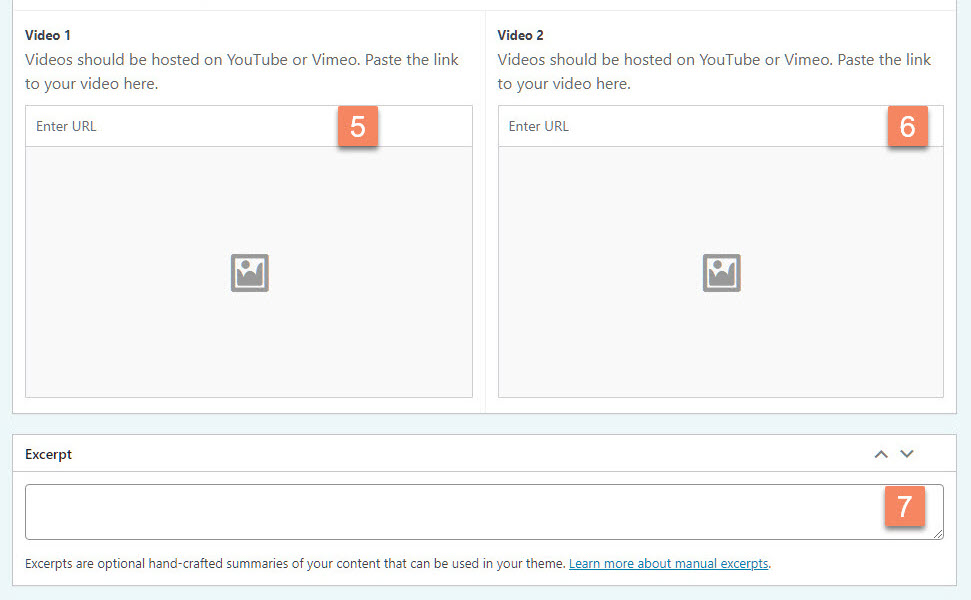
Figure 23
Video (Figure 23)
This section gives an option to embed two videos. Your videos need to be uploaded to YouTube before you can embed them in your member page. You need to enter the URL of your video in the Enter URL field (Figure 23.5 & 23.6)
To find your video URL:
- Open YouTube in a new browser tab and find your video.
- Under your video you see a link SHARE. Click on that link and a popup window opens with, among other options, the link to your video.
- Copy the link, go back to the browser tab with your member page and paste the URL in the Enter URL field in your member page
Excerpt (Figure 23.7)
We mentioned this field in the Chapter Member Page Top Section. You should have already entered an excerpt there. Paste the same excerpt into this field here. Both excerpt fields are used in different places on the front-end.