
Middle Section
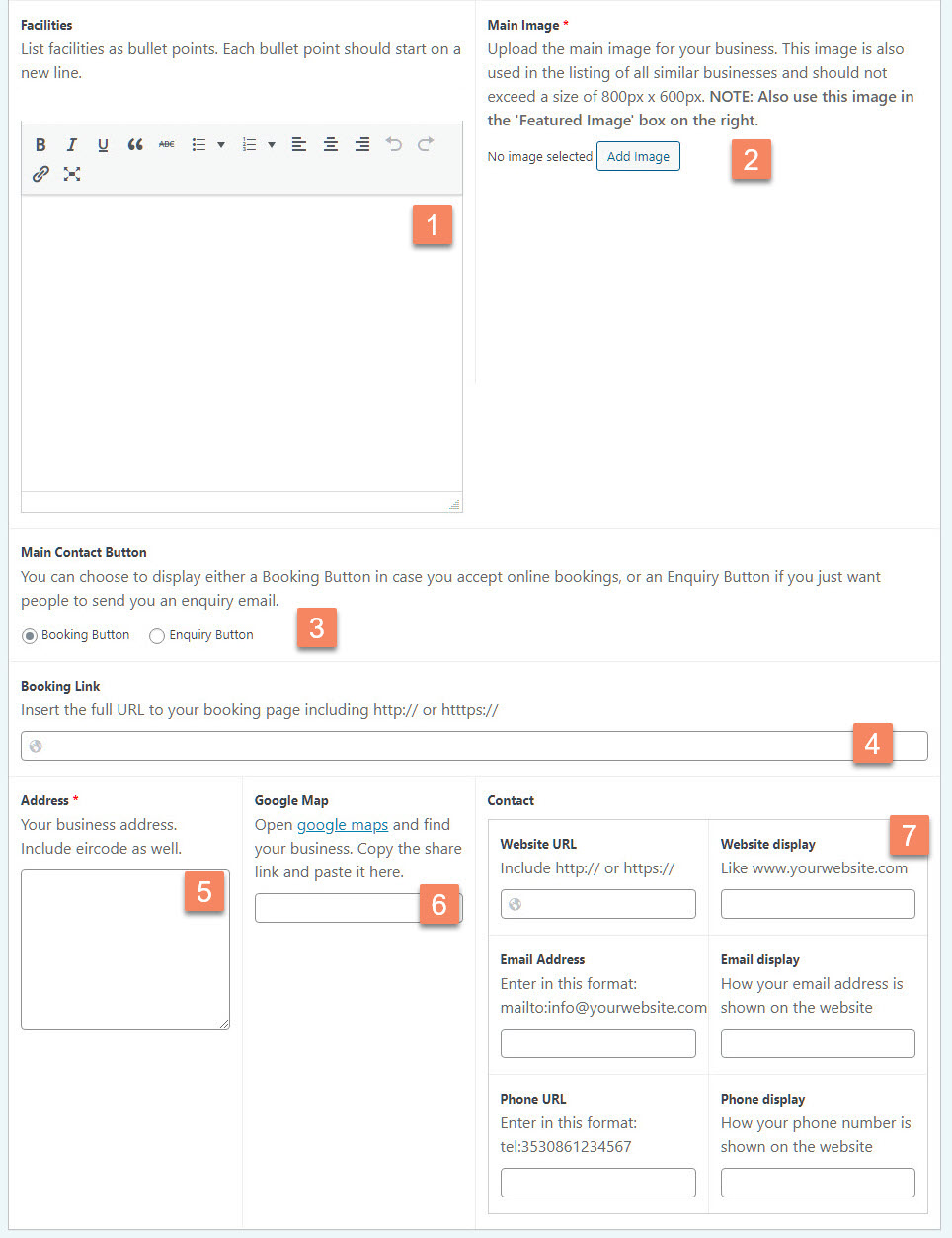
Figure 14
Facilities (Figure 14.1)
You can list the main facilities of your business here as bullet points. (Figure 14.1)
To create bullet points type one line per bullet point, and hit the Enter key on your keyboard to type the next line. Then select all the lines and click the bullet point icon in the tool bar above the text editor 
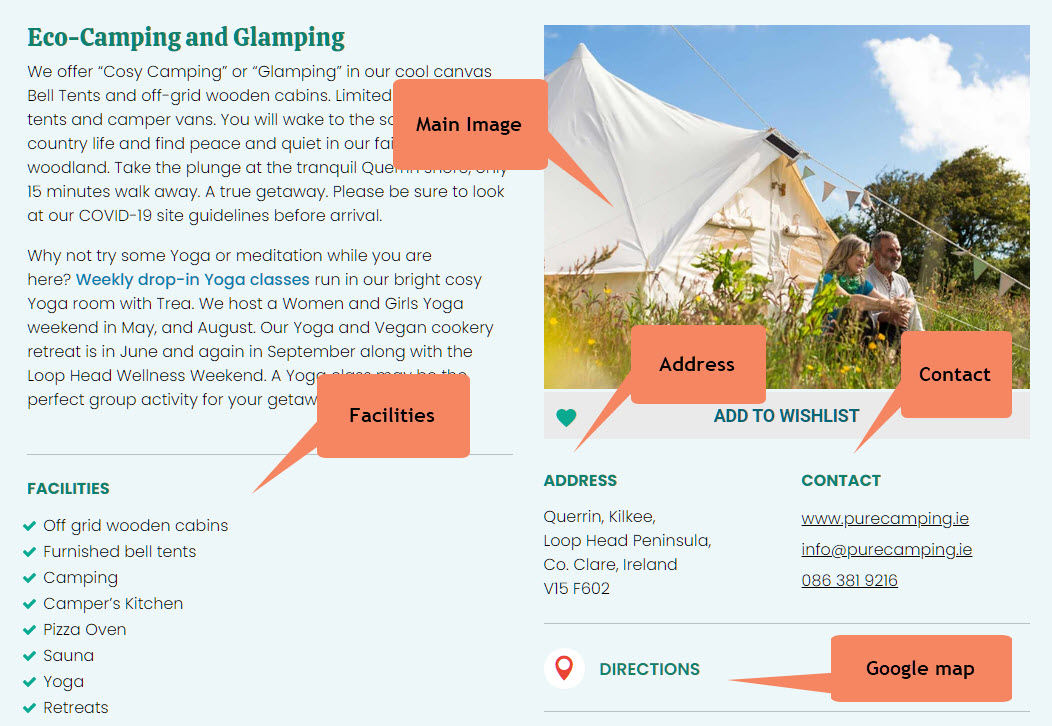
Figure 15
Main Image (Figure 14.2)
The Main Image is shown on your member page as you can see in Figure 15. To upload your image:
- Click the Add Image button (Figure 14.2) which will open a pop up window.
- In the Pop Up window click the Select Files button which will open Windows Explorer or Mac Finder on your computer
- Find the image on your computer and click Open. Your image will upload to the website and show in the Media Library.
- Click the blue Select button in the bottom right corner to finish
NOTE: We have restricted the image size to 800 x 600 pixels. This is to prevent people uploading large images that will slow down the load time of the website. There is more information in [fill in] about resizing images.
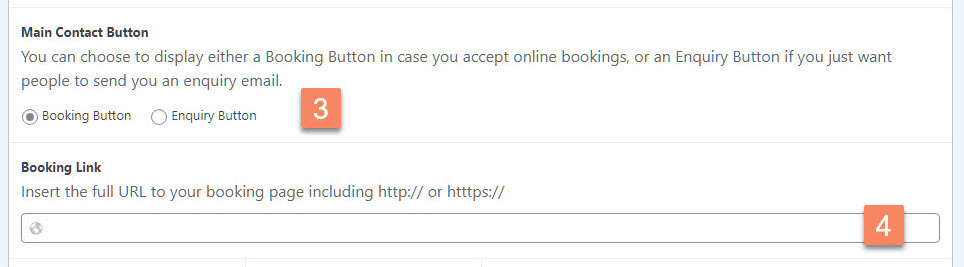
Figure 16
Main Contact Button (Figure 16.3)
The Main Contact Button appears at the top of your member page right to the title (Figure 17). It is there so people have a quick way of either booking with you or contacting you by email if you don’t have a booking facility on your website.
You’ll first need to select whether you have an online booking system or not. Either select Booking Button or Enquiry Button (Figure 16.3). The booking button brings people straight to the booking page of your website. The enquiry button opens the email program of the website visitor so they can send you an email.
Under Booking Link insert the full URL of your booking page. With Full URL we mean including https:// or http://. The best way to do this is to open your booking page in a new browser tab and copy the URL from your browser’s address bar.
If you have selected to display an Enquiry button, you’ll need to insert your email address here.
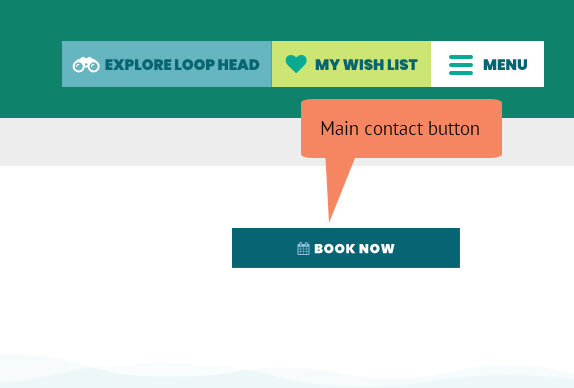
Figure 17
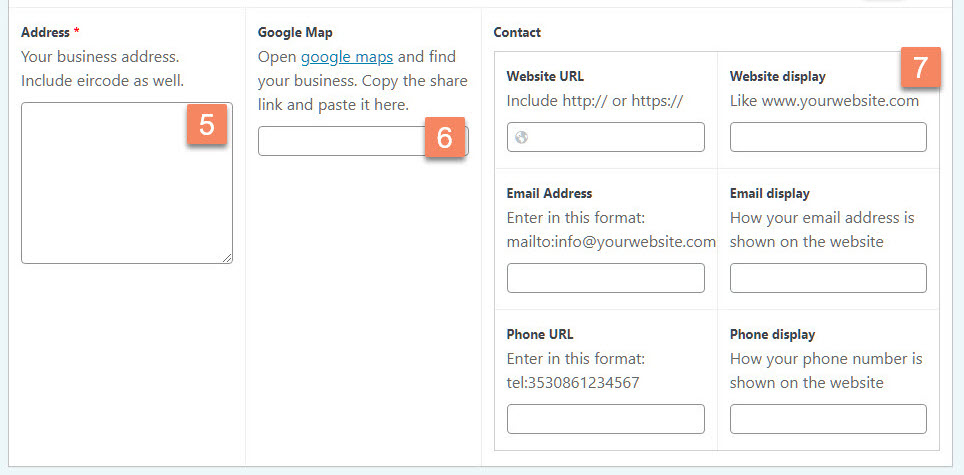
Figure 18
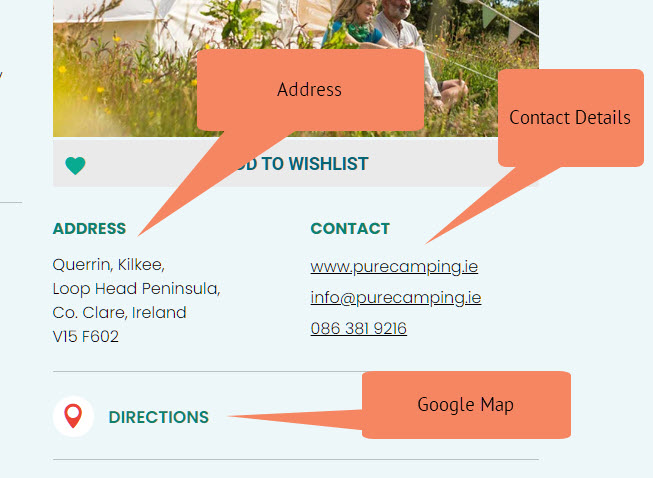
Figure 19
Address (Figure 18.5)
Enter your postal address here (Figure 18.5). Remember to include your eircode as a lot of people use this to enter your business in their mobile phone app to use GPS to find you.
Google Map (Figure 18.6)
Google Map (Figure 18.6) works with the Directions button on the front-end (Figure 19). You’ll need to go to Google maps and you can do that by clicking on the link in de description below this field’s label. Google Maps will open in a new browser tab.
- On the Google Maps page in the search field at the top left type your business name and address to find your location on the map.
- In the map click on the spot where your business is located and if needed drag it so that it is in the middle of the map.
- Click on the Share button in the left panel. In the popup window click on Copy Link
- Go back to the browser tab with your member page and paste that link in the field below Google Map (Figure 18.6)
Contact (Figure 18.7)
Under Contact (Figure 18.7) you can enter your website’s URL, your email address and your phone number. All are clickable so you will need to enter two values for each in order to get the links to work.
Website URL
Enter the full URL (including http:// or https://) of your website.
Website display
How you would like your website link to show on the front-end. This could be something like ‘www.mywebsite.com’ or just simply ‘our website’
Email Address
Enter your email address starting with mailto: So if your email address is info@mywebsite.com, enter mailto:info@mywebsite.com
Email Display
How you would like your email to show on the front-end. You might simply enter your email address here or you could enter something like ’email us’
Phone URL
This is entered in a similar way as above but in this case the phone number must begin with tel:
If your phone number is 086-123 4567 enter your phone number like this:
tel:3530861234567 or you can use tel:+353861234567
Phone display
Simply enter your phone number in here.