
Right Section
Categories (Figure 24)
You will need to tick the relevant category for your business page to show up in the listings. These will be different depending on the main category (DO, FOOD, STAY, SHOP) where your business is listed. Note that the PUB main category does not have any sub categories.
These categories are used for filtering the amount of member pages a visitor sees on the front-end to make it easier to find what they are looking for.
You can select more than one category if needed.
Featured Image (Figure 25)
You can select a featured image here that will be shown in the member page listing (Figure 25)
To select a featured image:
- Click the Set featured image link (Figure 24.2) which will open a pop up window.
- In case you already uploaded the Main Image for your page as was described here you can simply find that image in Media Library and select it and proceed to step 5
- If not then select it from your computer. In the Pop Up window click the Select Files button which will open Windows Explorer on your computer
- Find the image on your computer and click Open. Your image will upload to the website and show in the Media Library.
- Click the blue Select button in the bottom right corner to finish
Note: It is important to select a Featured image because otherwise your business will not be properly listed.
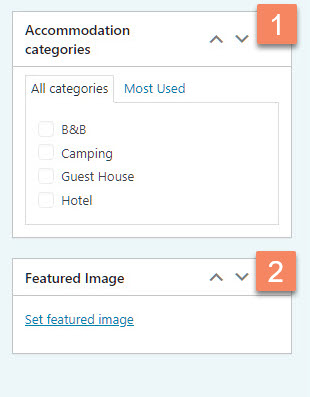
Figure 24
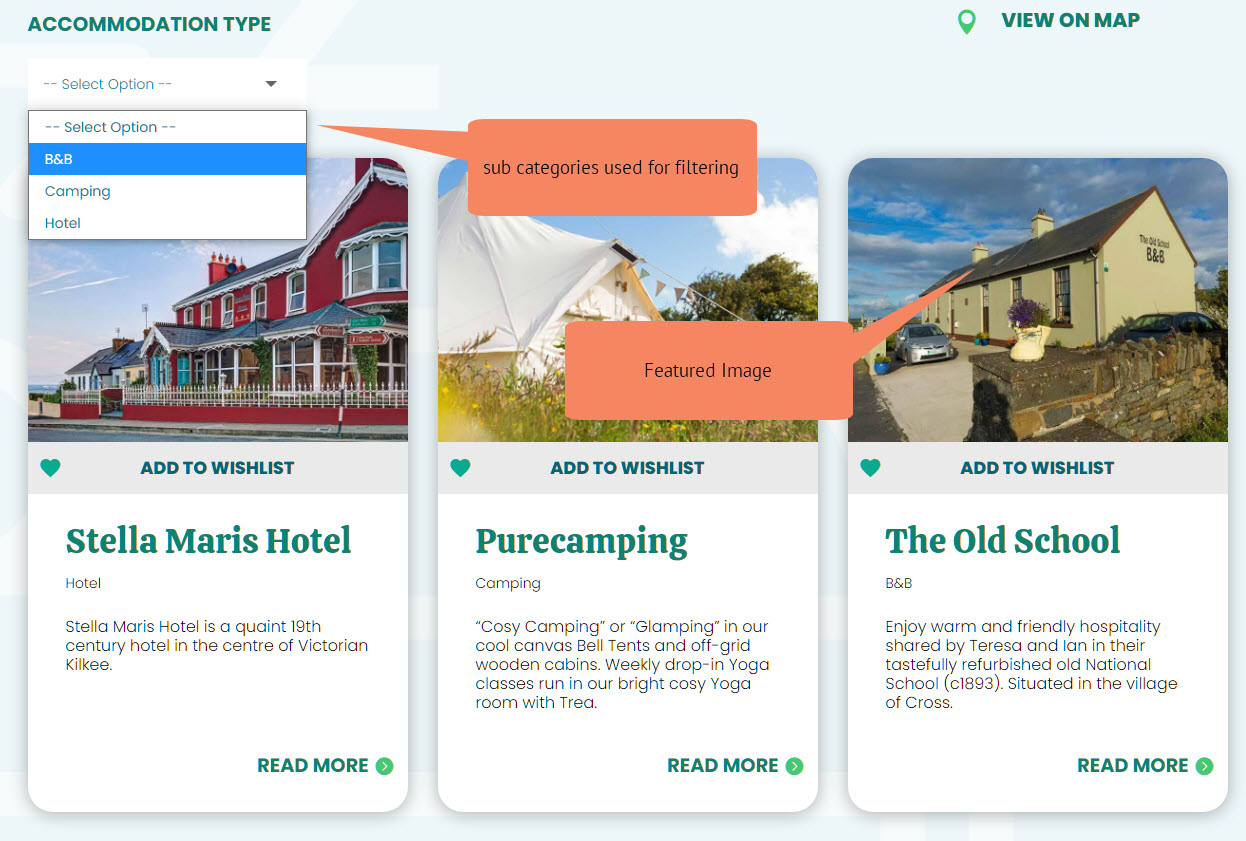
Figure 25