
To find your member page you will have to use the main WordPress admin area menu on the left and go the category where your business should be listed under. You would have chosen your category during the registration process.
In the coming pages of this manual we will be using John Brown B&B as an example. So in this case John Brown’s member page is listed under the accommodation category (Figure 9)
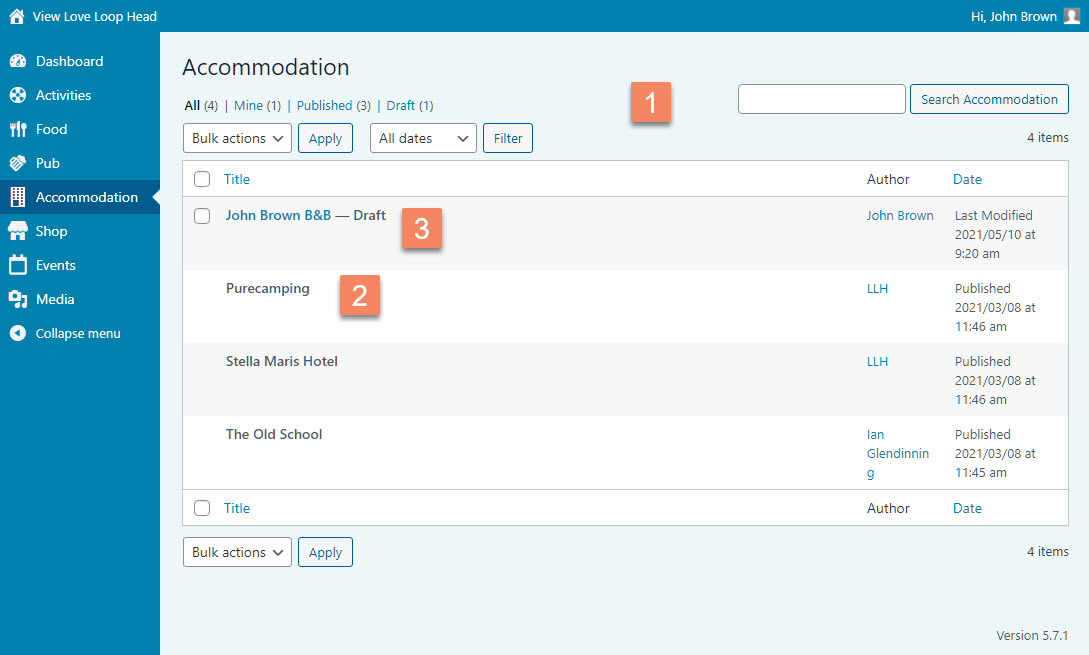
Figure 9
Under the Accommodation category you will find a list of all the members’ pages (Figure 9).
At the top of this list are options to filter the pages. For instance clicking on the Mine link only shows your own page (Figure 9.1).
You can only edit your own page, in this case John Brown B&B (Figure 9.3). A page that can be edited is shown in blue, other members’ pages are shown in grey (Figure 9.2).
To edit your page click on the blue link (Figure 9.3).
Note: When you edit your page for the very first time, ‘Draft‘ will display after the link. This means that the page is not yet visible to visitors of the website. You’ll first need to fill in the details and when that is done you’ll need to publish the page, to make it visible on the front-end.