
In the chapter Member Page Top Section learned what the description field does. That field has an extra toolbar at the top to give you some basic text editing options.
This chapter is going to explain how to use the text editor and how not to use it.
Toolbar Buttons (Figure 26)
Formatting your text works much like how you are used to do it in text editors like MS Word. In all cases you must first select/highlight the text you want to edit before applying a style to it.
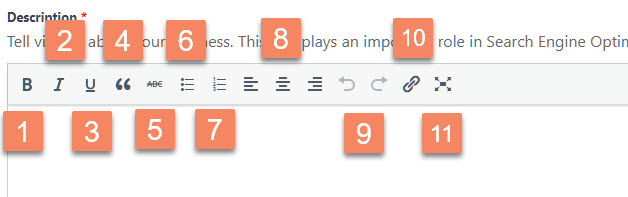
Figure 26
Bold – Figure 26.1
Makes your text bold. Use it for sub sub headers if needed. The keyboard short cut Ctrl+B/Cmd+B can also be used.
Italic – Figure 26.2
Italicize text. Use it to give emphasis to a text. The keyboard short cut Ctrl+I/Cmd+I can also be used.
Underline- Figure 26.3
Underline text. Never ever use this. Underlined text implies it is a link on the internet. If you want to emphasize text use Bold or Italics instead.
Blockquote – Figure 26.4
Quote text. Used as a way of showing a quote.
Strikethrough – Figure 26.5
Add a strikethrough to your text. Please do not use this.
Bulleted List – Figure 26.6
Create an unordered (bullet point) list
Numbered List – Figure 26.7
Create an Ordered (numbered) list
Text Align – Figure 26.8
Align text to the left, centre or right
Undo/Redo – Figure 26.9
Undo or redo your last action. The keyboard short cut Ctrl+Z/Cmd+Z for Undo and Ctrl+Y/Cmd+Y can also be used.
Insert Link – Figure 26.10
Used to create an html link to another page or website. The keyboard short cut Ctrl+K/Cmd+K can also be used. See more info below.
Distraction Free Writing – Figure 26.11
Clicking this button will enlarge the editor so that it fills the browser window. Clicking the Exit fullscreen link at the top of the screen will reduce it back to its original size
Creating a Bulleted/Numbered List
To create a bulleted or numbered list follow these steps:
- Type your first item
- Hit ENTER key on your keyboard
- Type the second item
- Proceed with the rest of the items
- Select/Highlight all items and click either Bulleted List icon or Numbered List icon
- To escape the list hit ENTER key twice
To remove a list select the whole list and click the icon on the toolbar.
Creating a Link
To create a link to another page or website follow these steps:
- In your text select/highlight the text you’d like to be made into a link (Figure 27.1).
- Click on the Insert Link icon in the toolbar (Figure 27.2) This will show a small popup window (Figure 27.3)
- In the popup window paste or type the URL of the page/website you want to link to (Figure 28.1)
- Click on the blue Enter Icon (Figure 28.2) to apply your link
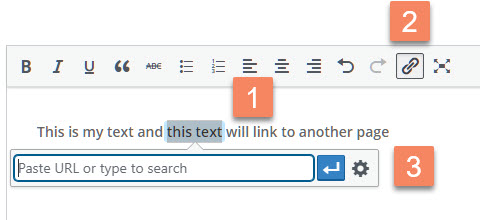
Figure 27
Editing a Link
To edit a link place the cursor anywhere inside the link text. A new small popup window will show (Figure 29)
Click on the Edit Link icon (Figure 29.1) to edit the link. The small popup will change again to what is shown in Figure 28.
Removing a Link
To remove a link place the cursor anywhere inside the link text. A new small popup window will show (Figure 29)
Click on the Remove Link icon (Figure 29.2) to remove the link.
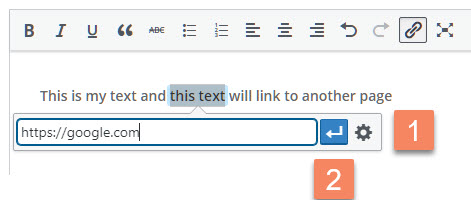
Figure 28
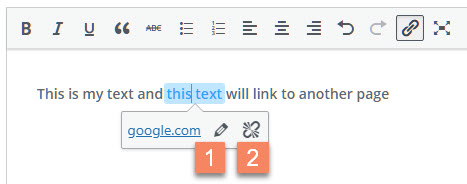
Figure 29